Your Procurement Cart

Shipping Status FREE Express 2-Day
Estimated Subtotal $0.00
Proceed to Checkout
Comprehensive Printer Support Desk

SETUP YOUR PRINTER

Get fast, easy assistance for printer setup, Wi-Fi pairing, driver installation, paper jam resolution, error code lookups, and print quality fixes.

Common Setup & Technical Issues We Resolve:

  • Wireless Wi-Fi & Network Setup
  • Driver Installation & Setup
  • Paper Jam & Tray Feed Errors
  • Printhead Cleaning & Ink Errors
Printer Setup & Support

Wireless Setup Ready

Windows, Mac & Mobile Pairing
Hardware Categories

Types of Printers Supported

Full setup assistance, driver installation, and troubleshooting across all printing technology types.

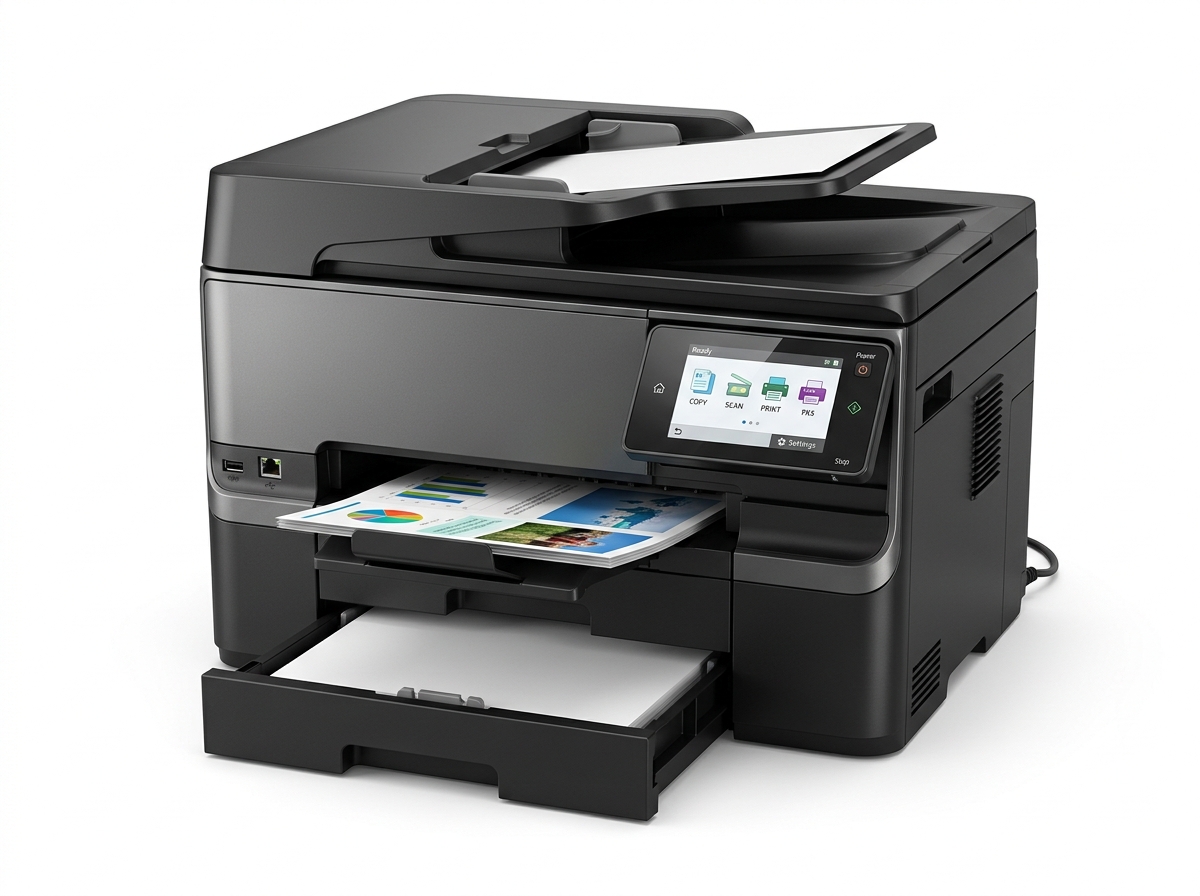
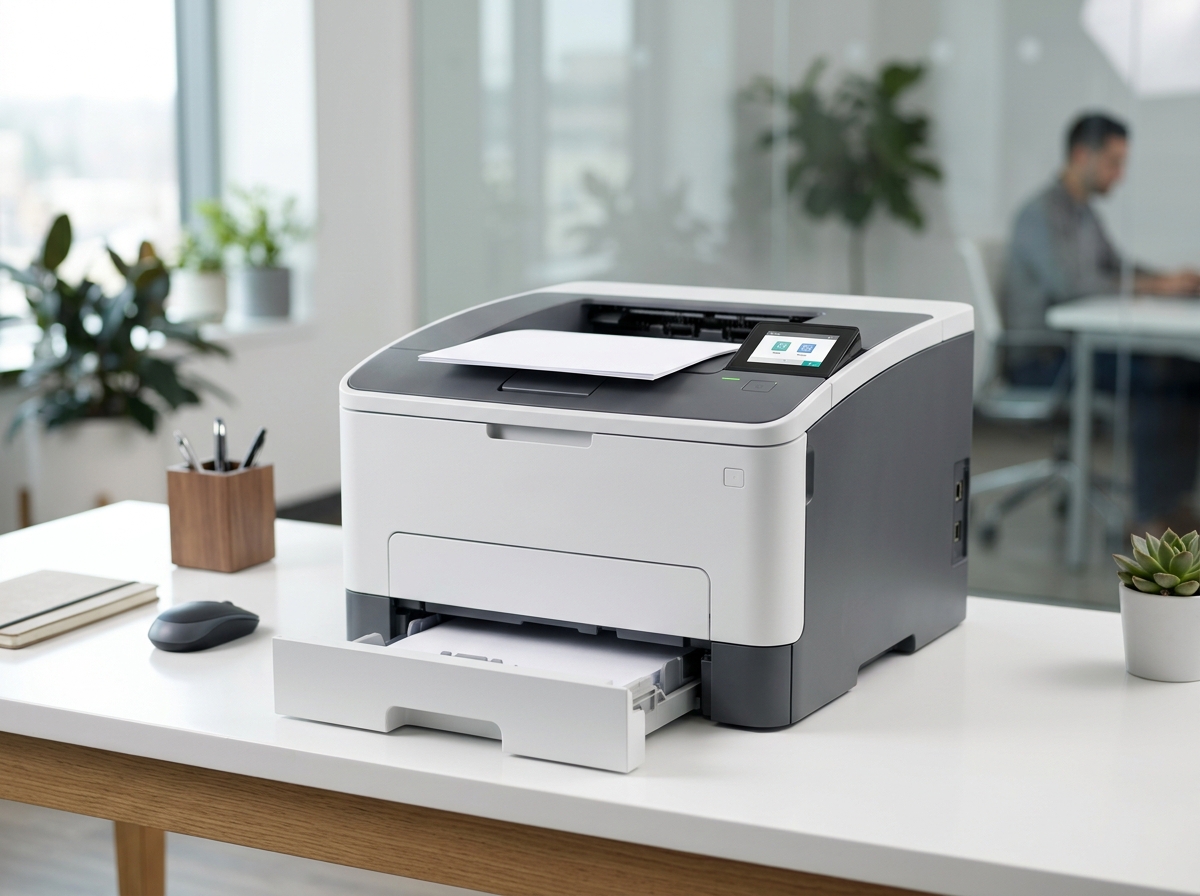
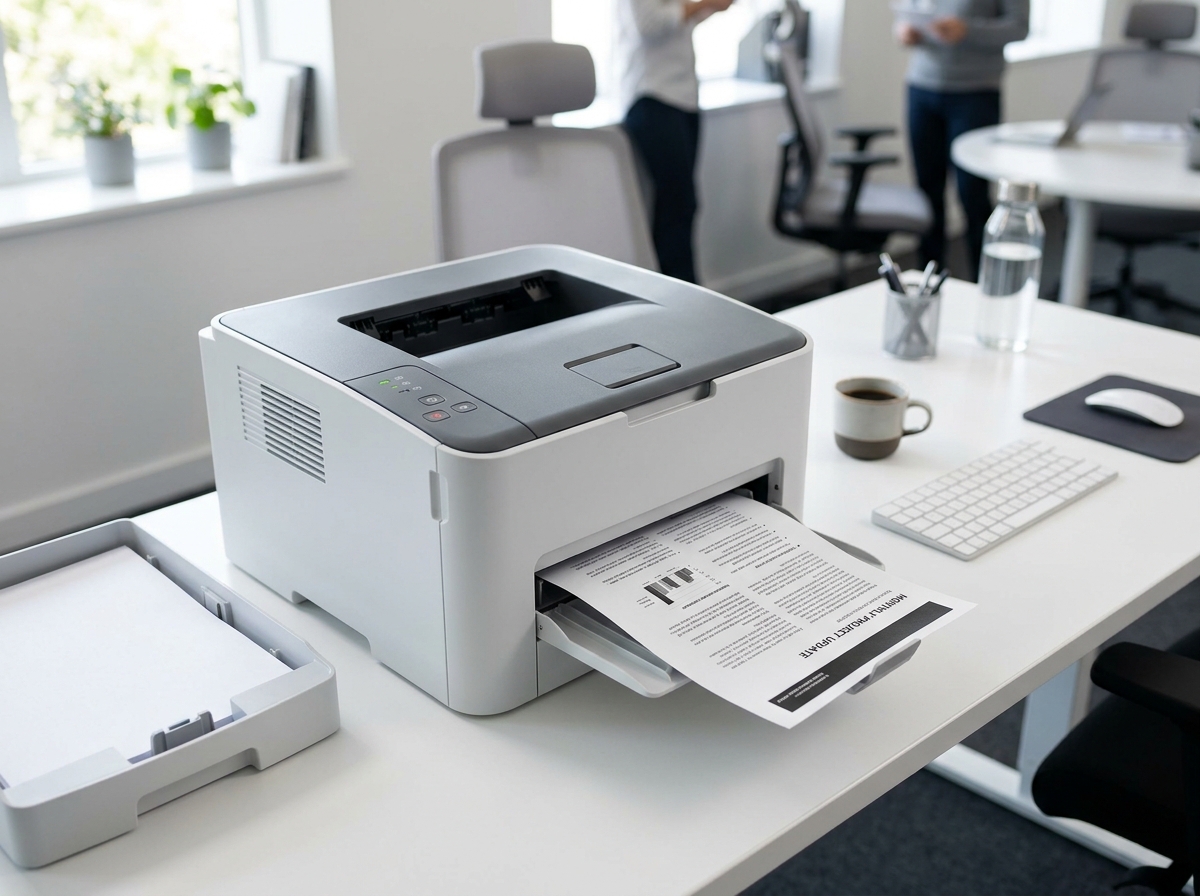
Laser Printers
Fast Document Output

Laser Printers

High-velocity monochrome & color laser engines for sharp text, fast first-page output, and heavy daily workloads.

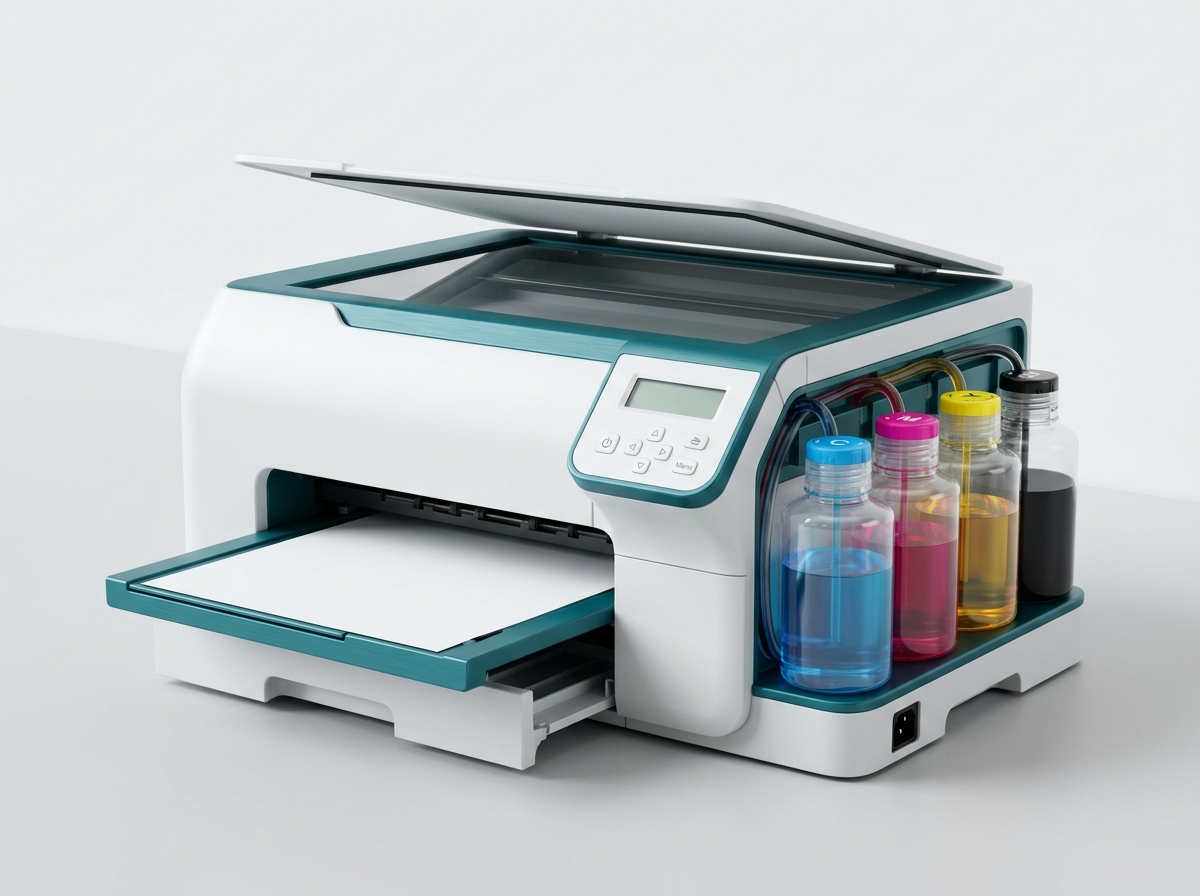
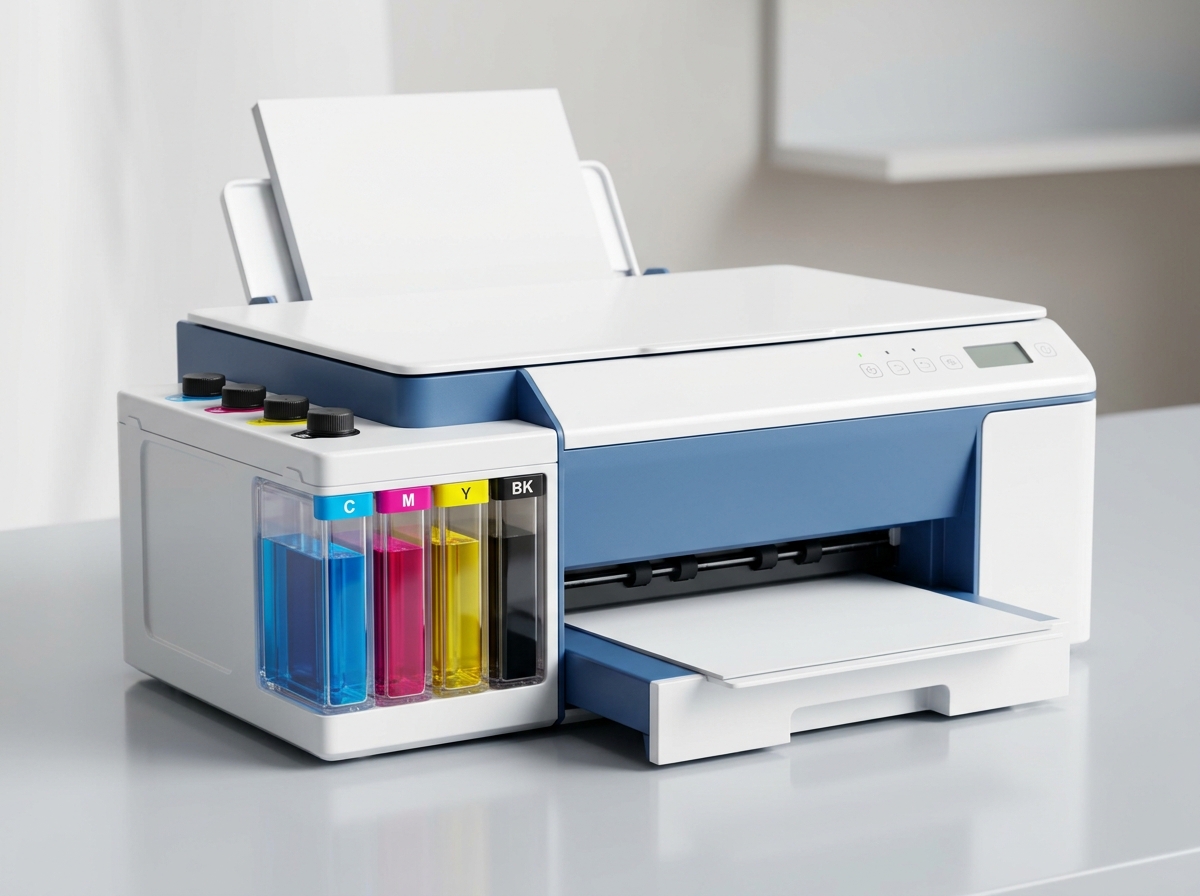
Continuous Ink Tank Printers
Low Cost Per Page

Continuous Ink Tank

Cartridge-free supertank systems with high-yield refillable ink reservoirs for thousands of pages straight out of the box.

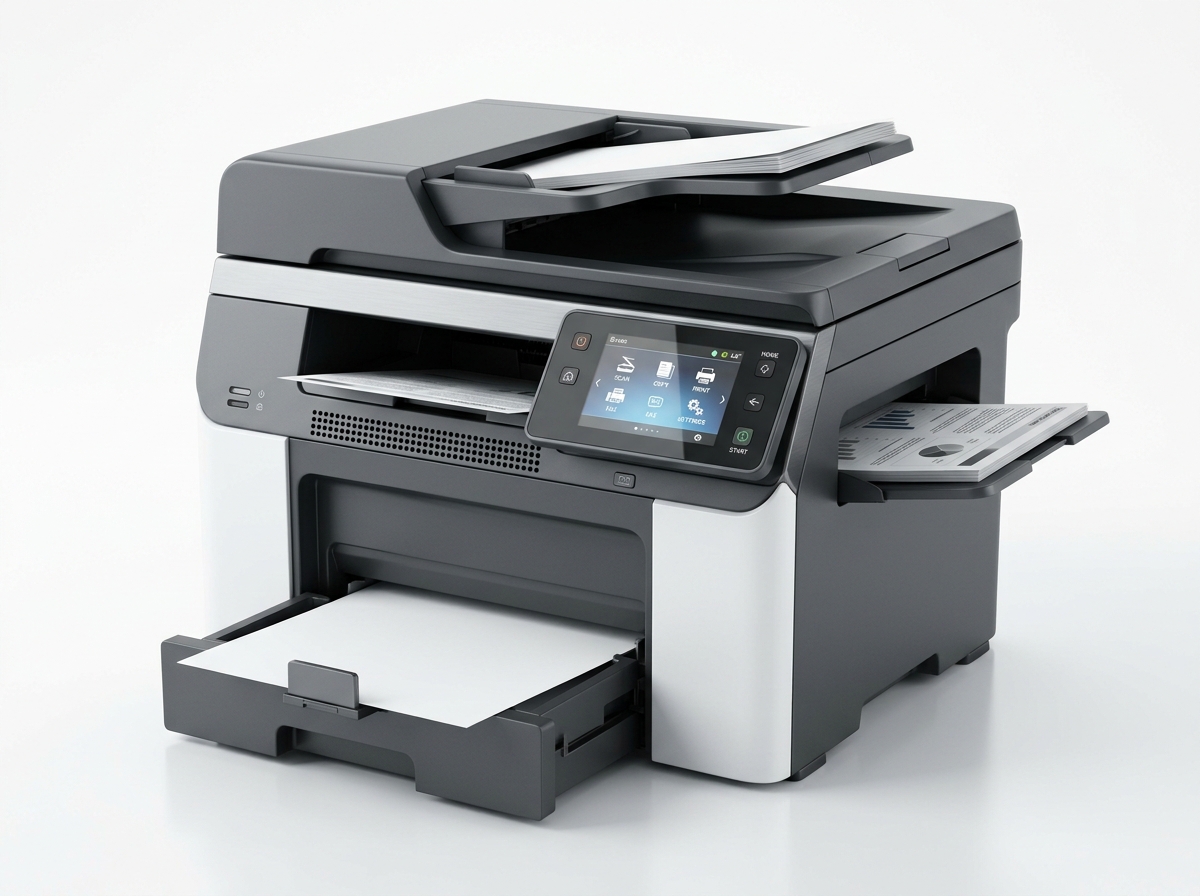
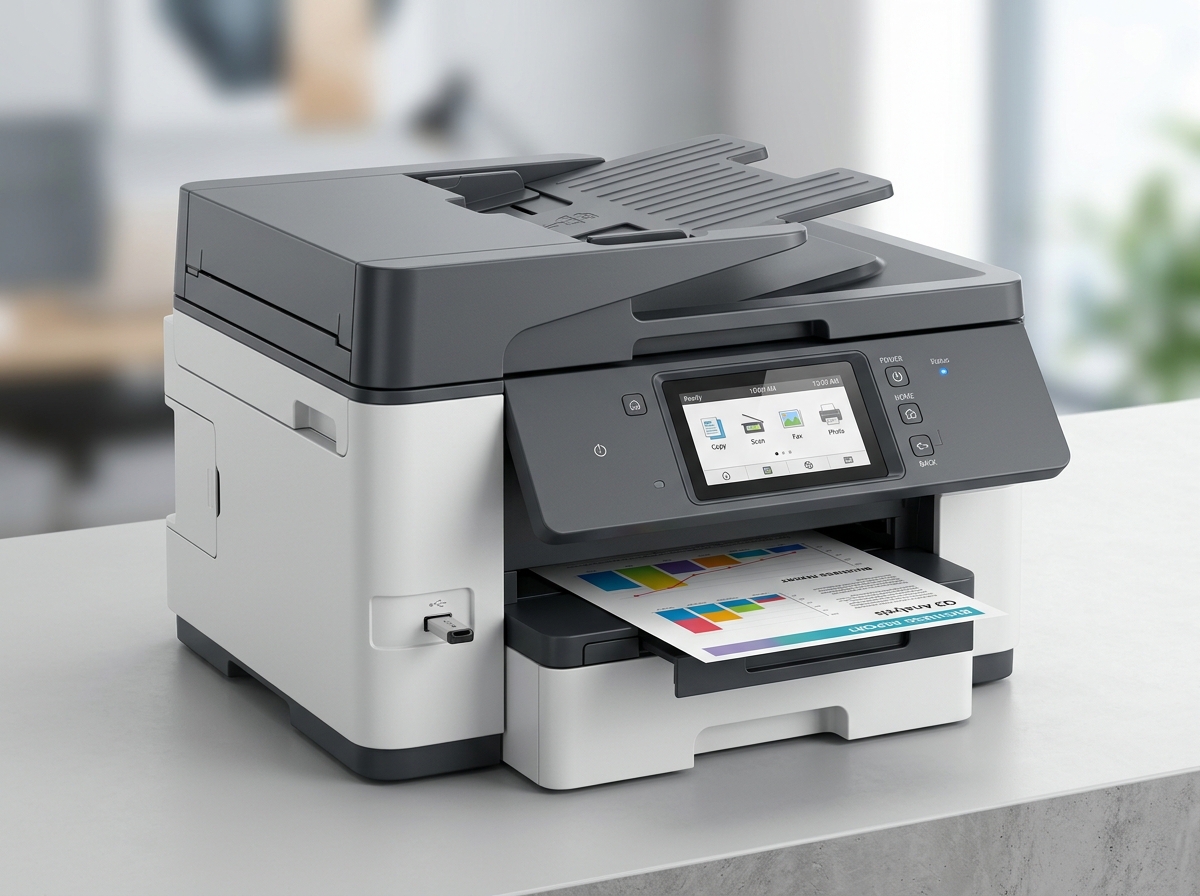
All-in-One Multifunction MFPs
Print, Scan, Copy

All-in-One MFPs

Multifunction print, copy, scan, and cloud dispatch stations equipped with automatic document feeders (ADF).

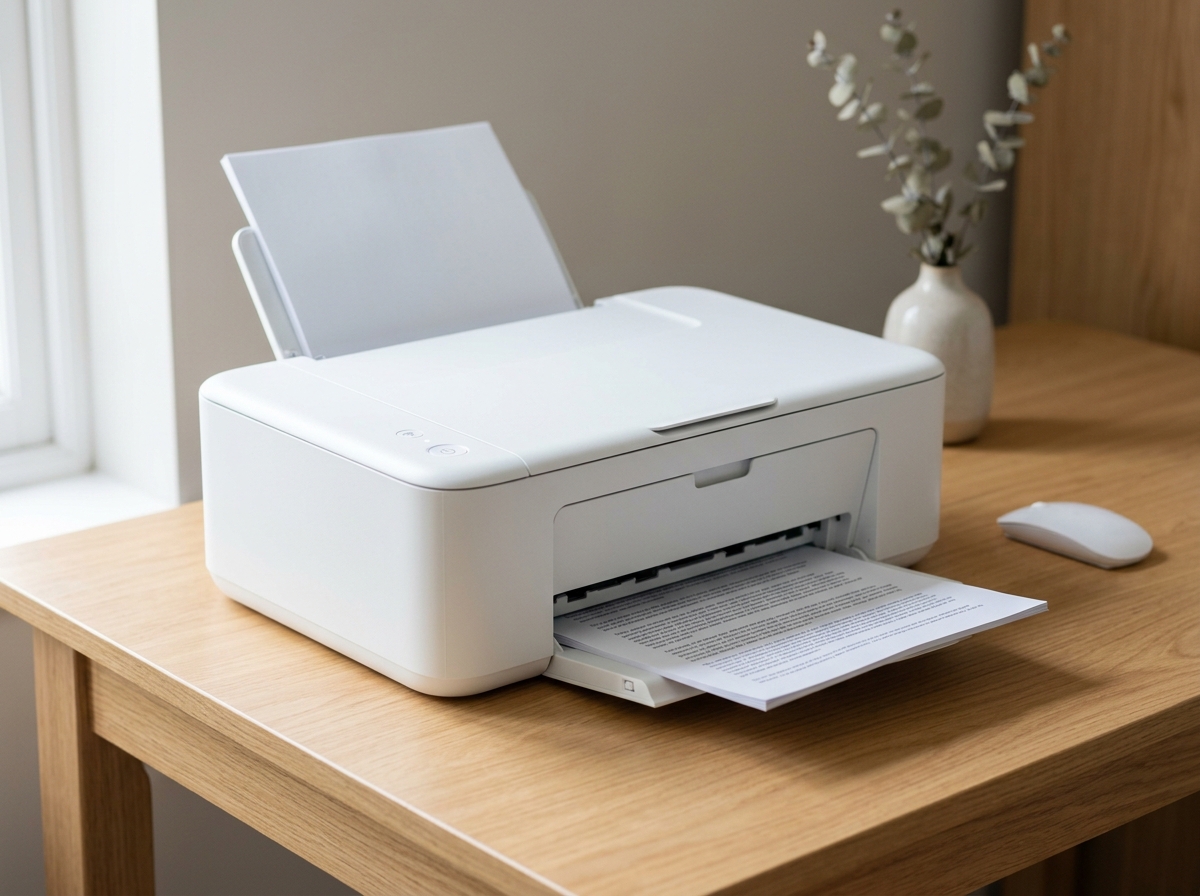
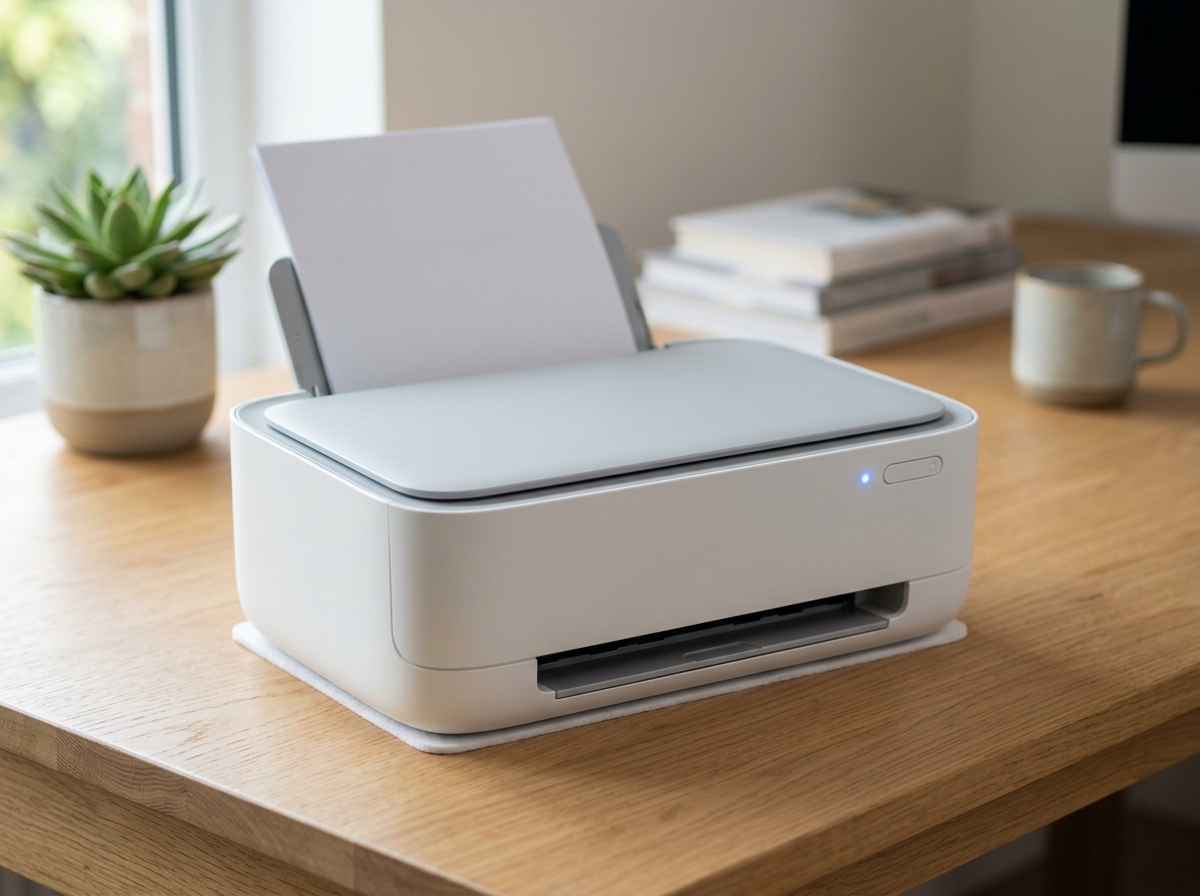
Compact Desktop Printers
Home & Remote

Compact Printers

Space-saving wireless desktop printers designed for home workstations, student tasks, and quiet remote offices.

Supported Lineups

Supported Model Series

Full technical assistance, wireless driver setup, and genuine supplies for all major printer model series.

LaserJet Series Printers

LaserJet Series

LaserJet Pro M404, M428fdw, Enterprise M507, and Color LaserJet MFP series. Fast document rendering and network setup.

Setup & Driver Support
Smart Tank Series Printers

Smart Tank Series

Smart Tank 515, 615, 7301, and 7602 refillable ink reservoir lineups. Printhead priming, air purge, and Wi-Fi reset.

Tank Refill Assistance
OfficeJet Pro Series Printers

OfficeJet Pro Series

OfficeJet Pro 8025e, 9015e, 9025e, and Wide Format 7740. High-yield color printing and cloud scanning configurations.

Business MFP Support
DeskJet & Envy Series Printers

DeskJet & Envy Series

DeskJet 2755e, 4155e, and Envy 6055e, 6455e wireless all-in-one desktop models. Wi-Fi Direct and mobile print setup.

Wireless Home Setup
Printer Hardware Care & Maintenance

Certified Driver Setup

Official Windows & Mac Packages

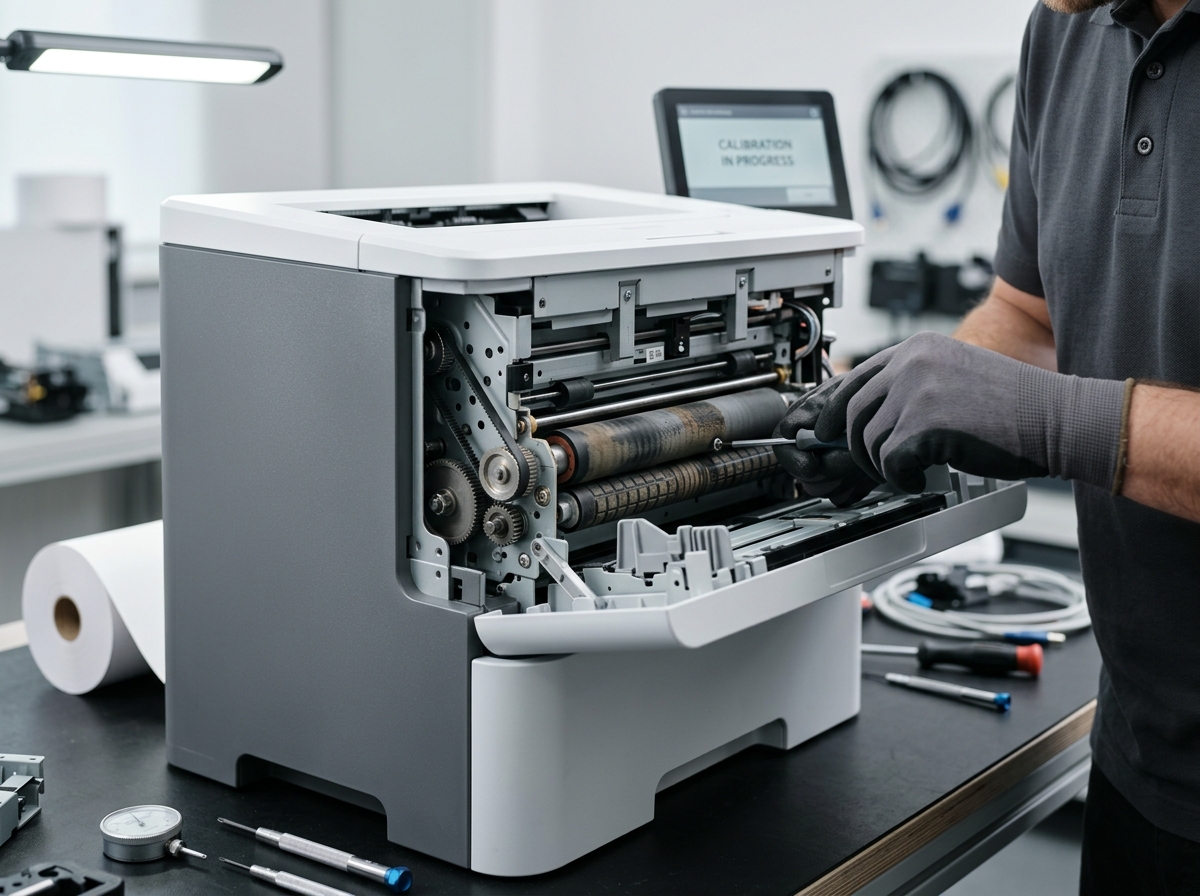
Proactive Maintenance

Keep Your Hardware Operating at Peak Efficiency

Regular maintenance and proper setup prevent 90% of common printing errors. Follow our verified guides for smooth paper feeding, printhead alignment, and driver updates.

Automated Printhead Alignment

Eliminate misaligned text lines and streaky color prints with one-click software calibration.

Clean Roller & Tray Path

Keep paper pickup rollers free from paper dust to eliminate multi-page misfeeds.

Diagnostic Matrix

All Common Printer Technical Issues

Full diagnostic breakdown of hardware, driver, network, and print quality failures.

Wireless & Network Disconnections

Printer loses IP address, drops Wi-Fi signal after sleep mode, or fails Wi-Fi Direct wireless pairing.

Paper Jam & Mechanical Feed Errors

Paper gets crumpled in fuser rollers, multi-page misfeeds occur, or Tray 1 fails to detect loaded paper.

Print Spooler & Driver Crashes

Print spooler service crashes in Windows, jobs stall indefinitely in queue, or driver fails to communicate.

Faded, Streaked or Blurry Quality

Horizontal lines appear across documents, colors look distorted, or black ink outputs as faint grey.

Cartridge & Chip Detection Faults

Printer displays "Incompatible Cartridge", chip read failure, or incorrect low ink warning lights.

Scanner & Document Feeder Errors

Automatic Document Feeder (ADF) paper jam, TWAIN/WIA scanner not found, or scan-to-computer fails.

Step-by-Step Instructions

Printer Troubleshooting Guide

Follow these core diagnostic steps to restore normal printer operation quickly.

01

Check Power & Cables

Ensure the power cord is plugged directly into a wall outlet and USB/Ethernet cables are firmly connected.

02

Restart Print Spooler

Open Windows Services (services.msc), locate "Print Spooler", right-click and select Restart to clear stuck queues.

03

Verify Driver Software

Ensure official print driver packages are installed on your computer rather than generic OS drivers.

04

Run Nozzle Cleaning

Use the printer software utility to run automated printhead nozzle cleaning if output has missing lines or streaks.

Paper Jam Solution

How to Fix a Printer Paper Jam Issue

Follow these step-by-step instructions to safely remove jammed paper without damaging internal rollers or sensors.

STEP 1

Power Off the Machine

Turn off the printer completely and disconnect the power cord to prevent motor activation or electric shock.

STEP 2

Gently Remove Paper

Open the front access door or rear door. Pull the stuck paper slowly with both hands to avoid tearing small scraps inside.

STEP 3

Inspect Paper Trays

Remove paper tray 1 and tray 2. Ensure paper is stacked evenly and paper width guides are adjusted properly.

STEP 4

Close Covers & Test

Close all doors firmly, plug in the power cable, power on the machine, and run a sample test page.

STEP 1

Enable Wireless Mode

Press the Wireless Button or navigate to Network Settings > Wireless Setup Wizard on the printer display screen.

STEP 2

Select Wi-Fi Network (SSID)

Choose your 2.4GHz Wi-Fi router name (SSID) from the detected network list and enter your Wi-Fi password.

STEP 3

Install Print Driver

On your computer, open Printers & Scanners, click Add Printer, and select your connected wireless printer.

STEP 4

Print Wireless Test Page

Confirm connection status by printing a Wireless Network Test Report directly from the control panel.

Wi-Fi Connectivity

How to Connect Your Printer Wirelessly

Easy step-by-step instructions to pair your printer with your home Wi-Fi router, computer, laptop, or smartphone.

Error Code Lookup

Printer Error Codes & Quick Fixes

Lookup table for numerical error codes displayed on your printer display panel or computer screen.

Code 0x6100004a

Carriage Jam Stalled Error

Cause: Printhead carriage stuck or blocked by torn paper debris.
Quick Fix: Turn off power, open access door, slide carriage manually, clear scraps, and restart.

Code E3 / E4

Paper Jam & Media Feed Error

Cause: Paper crumpled in feed roller or misaligned tray 1 guides.
Quick Fix: Pull paper slowly with both hands, align paper stack evenly, and adjust paper width guides.

Code 50.4

Fuser Assembly Power Fault

Cause: Unstable line voltage or printer plugged into surge strip.
Quick Fix: Plug printer directly into a wall outlet, turn off for 2 minutes, and power on.

Code 79 / 79.00

Firmware Memory Corruption

Cause: Corrupted print job payload sent via network queue.
Quick Fix: Disconnect Ethernet cable, power cycle printer, clear pending print queue on host PC.

Code 13.00.00

Duplexer Path Paper Jam

Cause: Paper caught in rear automatic two-sided printing unit.
Quick Fix: Remove rear duplex cover, pull paper outward, and inspect green release latch.

Code E9 / 0xB800

Cartridge Contact Failure

Cause: Copper electrical contacts smudged with oil or ink dust.
Quick Fix: Remove cartridge, clean contacts with dry lint-free cloth, and re-seat until locked.

Additional Solutions

Other Printer Issues & Their Solutions

Resolutions for carriage jam errors, blank page outputs, slow print speeds, and cartridge detection faults.

Trademark Notice

All product names, images, brand logos, and trademarks displayed on this website are the property of their respective owners and are used for identification purposes only. Nexafix Solutions operates as an independent e-commerce retailer and is not affiliated with, endorsed by, or sponsored by any manufacturer unless explicitly stated. Product availability, specifications, and pricing are subject to change without prior notice. While we strive to provide accurate and up-to-date information, Nexafix Solutions does not guarantee that all content on this site is complete, current, or free from errors.